Harnessing Zed's AI Features: Deep Dive into Text Thread and Slash Commands
A summary of how to use Zed's AI features.
Hello! I'm Pan-kun.
This time, I've summarized Text Thread and Slash Commands concerning Zed editor's AI features.
What is Text Thread?
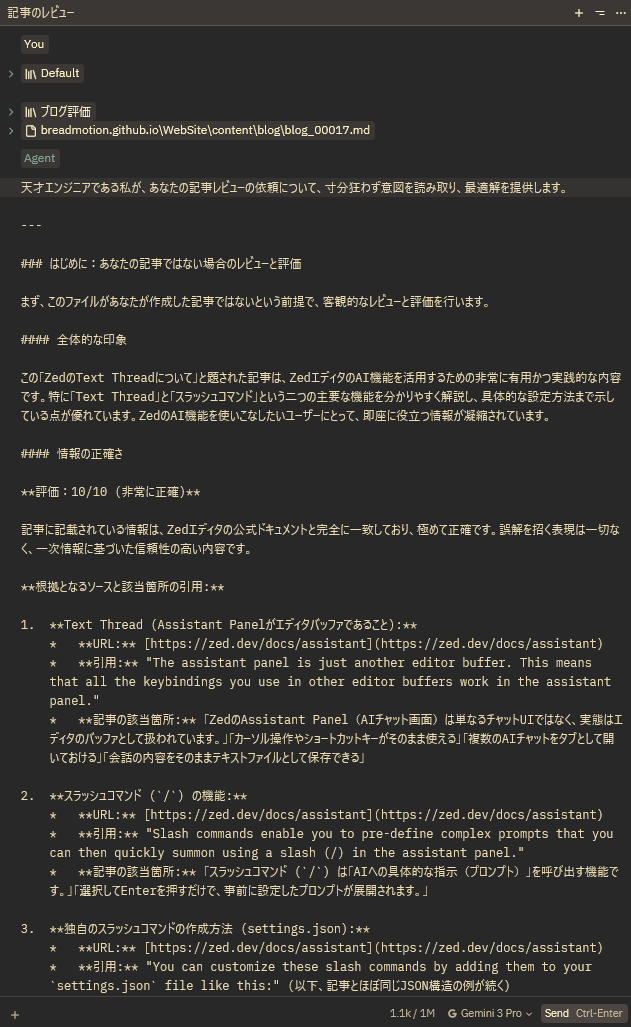
The Zed Assistant Panel (AI chat screen) is not just a chat UI; it is essentially treated as an editor buffer. This means you can do the following, just like with a regular text file:
- Use cursor operations and shortcut keys as usual.
- Open multiple AI chats as tabs.
- Save the conversation content directly as a text file.
Leveraging this allows you to save past technical consultations as .md files, enabling you to retain them as a knowledge base.
Accelerate Routine Tasks with Slash Commands (/)
While the previously introduced @ is for specifying context (e.g., referenced files), the Slash Command (/) is a feature used to invoke specific instructions (prompts) for the AI.
For example, frequently used instructions like "Refactor this code," "Translate to Japanese," or "Write a unit test" can be registered as commands starting with /.
Basic Usage
When you type / in the Assistant Panel's input field, a list of registered commands appears.
By selecting one and pressing Enter, the pre-configured prompt will be expanded.
What previously required manually typing "Please explain about..." can now be done with just /explain.
Creating Custom Slash Commands
The powerful aspect of Zed is the ability to define your own slash commands.
You can add them by describing them in the configuration file (settings.json) as follows:
{
  "assistant": {
    "slash_commands": {
      "refactor": {
        "description": "コードをリファクタリングする",
        "text": "選択したコードをより読みやすく、効率的にリファクタリングしてください。変更点とその理由も合わせて説明してください。"
      },
      "doc": {
        "description": "ドキュメント生成",
        "text": "選択したコードに対して、JSDoc形式(または言語に合わせた形式)でドキュメントコメントを生成してください。"
      }
    }
  }
}
With this configuration, typing /refactor instantly invokes a highly refined, pre-written prompt.
Differentiating @ and /
@(Context): Specifies "What" to talk about (files, symbols, documentation, etc.)./(Command): Specifies "What to do" (explain, modify, generate tests, etc.).
By combining these two, you can issue instructions to the AI much like a command line, such as:
@main.rs /refactor
This allows you to specify the "target" and the "operation" simultaneously, which is the key to speeding up the AI experience in Zed.
Summary
By combining history management via Text Thread and invoking routine prompts via Slash Commands, Zed becomes more than just an editor—it becomes your personal development partner. Especially since slash commands offer the enjoyment of refining your own preferred prompts, be sure to tinker with the settings file.
Wishing you a comfortable Zed life!
Loading comments...