Trying Out Discordo:Using Discord from the Terminal
A clear explanation of how to install and use 'Discordo,' a terminal-based Discord client, specifically for the Windows environment.
Hello! I'm Pan-kun.
This time, I tried out a tool I happened to see on X (formerly Twitter). It's called Discordo!
Since the README.md indicated that installation was very simple, I'll detail the setup method for the Windows environment.
Installation Method
Download: Download Discordo for Windows from here and extract the zip file.
Placement: Place the extracted
discordo.exefile in a directory of your choice. Example:C:\Users\YourUserName\AppData\Local\DiscordoEnvironment Variable: Add the path to the directory where you placed the file to the
PATHenvironment variable. This allows you to execute thediscordocommand from Command Prompt or Git Bash.Execution: Launch Command Prompt or Git Bash and enter
discordoto run it. Upon first launch, a screen will appear to select the login method. Log in using a QR code or your email address and password.
Now, let's look at the basic usage after logging in.
Basic Usage
Once logged in, a list of Discord channels will be displayed in the terminal.
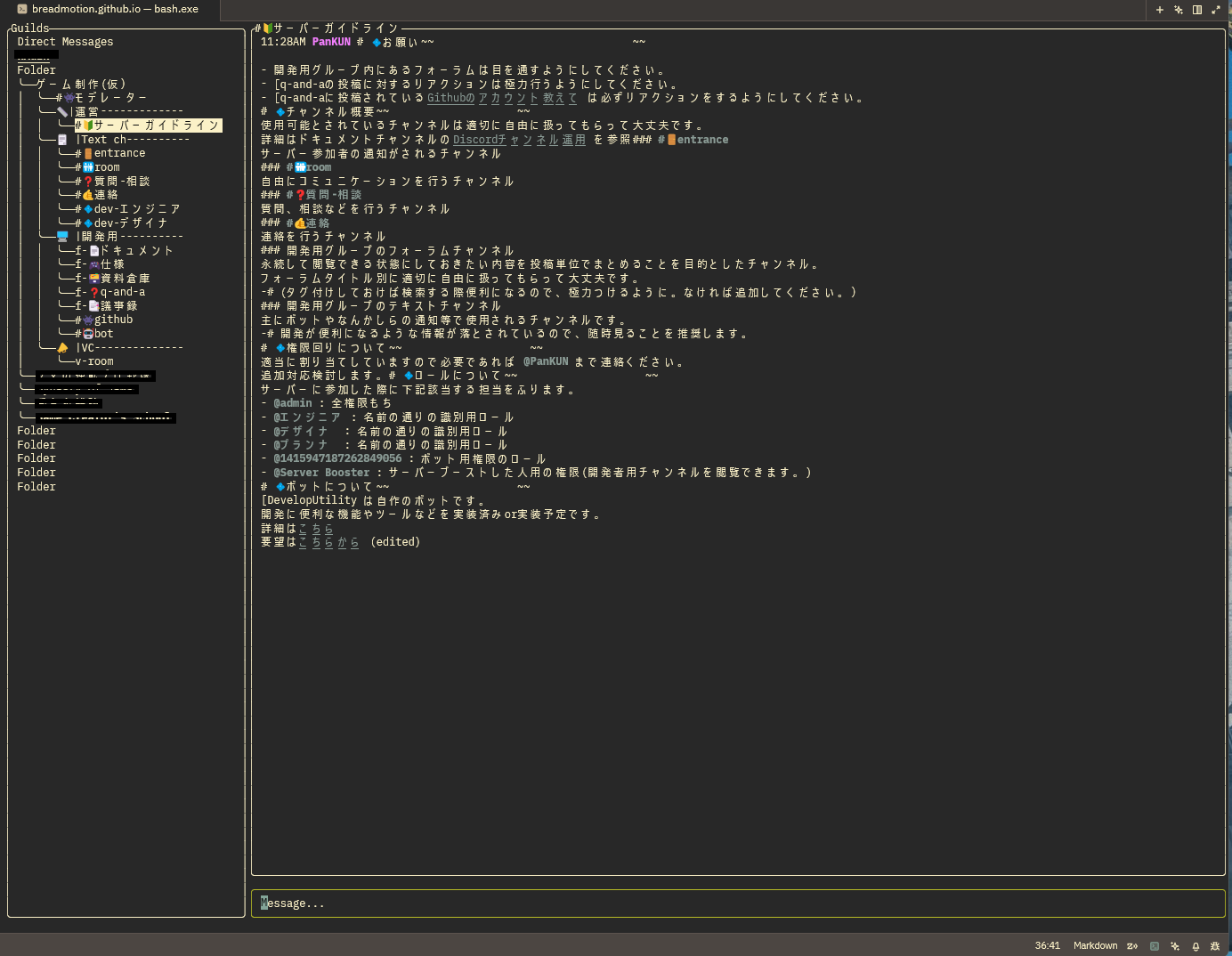
- Selecting a Channel:
- Use the Up/Down keys to select a channel.
- Press Enter to enter the selected channel.
- Sending Messages:
- Type your message within the channel and press Enter to send it.
- Commands:
- You can execute commands starting with
/. - Example:
/helpto display the help menu.
- You can execute commands starting with
- Exiting:
- Press
Ctrl + Cto exit Discordo.
- Press
Useful Features
Discordo has several features that are convenient for operating Discord from the terminal.
- Mentions:
- You can send mentions using
@username. User names can be autocompleted with the Tab key.
- You can send mentions using
- File Sending:
- This feature is not yet implemented (unfortunately).
- Emojis:
- You can send emojis using
:emojiname:. Emoji names can be autocompleted with the Tab key.
- You can send emojis using
- Markdown:
- Messages can be styled using Markdown format, similar to standard Discord.
- Example:
*emphasis*,**bold**,_italics_
Advanced Applications
Using Discordo allows for various applications involving operating Discord from the terminal.
- Scripting:
- By executing Discordo from a script, you can automate the sending of routine messages or the control of a bot.
- Server Monitoring:
- You can create scripts to monitor server status and notify Discord when an anomaly occurs.
Notes
Here are a few points to note when using Discordo.
- Security:
- This tool is an unofficial client. Since you will be entering your Discord login information (email address and password), use it at your own risk.
- Exercise caution regarding security, such as only using it in a trustworthy environment and avoiding reusing passwords.
- Terms of Service:
- The use of unofficial clients may violate Discord's Terms of Service. Please understand that there is a non-zero risk that your account may be affected before use.
Summary
Discordo is a convenient tool that allows you to easily operate Discord from the terminal. For engineers, being able to check Discord information and send messages without leaving the terminal can potentially lead to increased work efficiency.
If you are interested, please give it a try!
Loading comments...