About Zed Collaboration
An introduction to Zed's Collaboration feature.
Hello, this is Pan.
This post provides an introduction to Zed's "Collaboration" feature.
I observed that some users may not explore this feature without prior knowledge, so I will briefly explain what it is and how it can be used.
Overview
Clicking the image below:
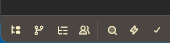
will open the panel shown in the image below. (If you are prompted to sign in, please do so. A GitHub account can be used.)
This is the panel I will discuss.
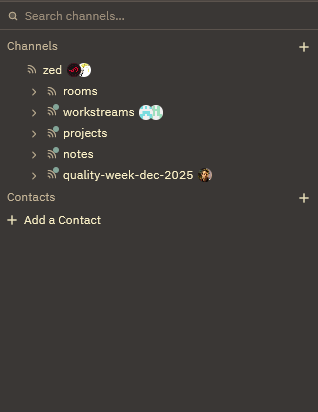
As the name "Collaboration" implies, this functionality enables collaborative work.
The official documentation is available here:
zed.devOverview | Collaboration
By default, the panel contains two categories:
- Channels
- Contacts
The Channels feature provides the following capabilities.
(The following is a translated excerpt from the Zed documentation: Zed Doc)
- Pairing – When working together, each participant retains their own screen, mouse, and keyboard.
- Mentoring – It is easy to jump into another person's context and help them out of a blockage without friction from pushing code.
- Refactoring – Multiple people can participate in large refactorings without fear of conflicts.
- Awareness – Everyone can see what others are working on without relying on status emails or meetings.
In addition, there is a "Notes" feature that allows editing Markdown note files per channel instance.
These can be used as channel guides, to record ideas, or for other purposes as appropriate.
Official excerpt:
Each channel has an associated Markdown note file to track current status and new ideas or to collaboratively design the feature being worked on before touching the code.
The Contacts feature provides the following capabilities.
(The following is a translated excerpt from the Zed documentation: Zed Doc)
Zed allows users in your contacts to engage in private calls and collaboration sessions.
These calls can be one-on-one or include multiple contact-registered users.
Common Functionality
This section describes features common to both Channels and Contacts and highlights the primary functionality of the Collaboration panel.
When you join a session (either via Channels or Contacts), a UI similar to the image below appears in the top-right corner of the Zed IDE:
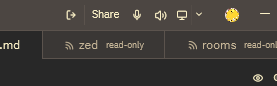
From left to right, the controls function as follows:
- Share the project open in your Zed IDE window with collaborators in real time, including edit permissions.
- Mute microphone.
- Disable output (this also mutes the microphone).
- Screen sharing.
Channels Details
The following points provide the essential information:
- Default access is private.
- Right-click a channel and select "Invite" to invite users by GitHub username.
- Permissions from a parent channel are inherited by child channels. If permissions are overridden or reconfigured at a child channel, that configuration applies to channels beneath it.
For more granular behaviors—such as multiple windows or switching contexts—consult the official documentation:
zed.devChannels | Channels
Contacts Details
Contacts are largely equivalent to Channels in capability. The primary difference is:
- There is no need to create a channel, which eliminates maintenance and administrative overhead.
Select the option that best fits your workflow.
FAQ
Q. There are already channels named "Zed" and subchannels. Could they see my project?
A. Those are sample channels created and published by Zed's official team.
If they are in a shared state, others can view them; if your microphone is enabled, audio will be audible to others. The same applies to screen sharing.
If you do not intend to use them, they may clutter the UI/UX; collapse the top-level dropdown to keep the panel compact.
The Collaboration Panel's guidelines are sometimes documented in channel notes, so reviewing those notes can be informative.
Q. If I create a channel, will others be able to see it?
A. If you set a channel to Public during creation, it will be visible to others.
If you prefer not to be visible, create the channel with the default (private) setting and invite only the necessary participants.
Conclusion
The above summarizes Zed's Collaboration capabilities.
This feature resembles Live Share found in Visual Studio, VS Code, and other IDEs; however, given Zed's performance characteristics, it appears particularly effective and convenient.
Combined with screen sharing and channel-based organization, the experience can feel similar to coding within a Discord community server.
One can only hope that more members of one's environment adopt Zed...
Even without that, Zed remains an excellent IDE, but for this specific feature, broader adoption would enhance its utility.
Wishing you a productive and pleasant experience using Zed.
Loading comments...