Recommended Zed `keymap.json` Settings
I share my minimal recommended `keymap.json` settings for Zed.
Hello! Pan here.
In this post I describe my recommended keymap.json settings for the Zed editor — the key mappings I find convenient to set up.
I also previously wrote about recommended IDE settings in settings.json, so you might want to read that as well: breadmotion.github.ioRecommended Zed setting.json | PanKUN BlogI share my minimal recommended settings for Zed's setting.json
Introduction
Zed provides a customizable keybinding system that is easy to configure. While some IDEs let you change bindings via settings.json, Zed primarily uses keymap.json for most custom key mappings (writing them in settings.json may also work in some cases).
Examples of other editors/IDEs with configurable bindings:
- VSCode
- Atom
- Emacs
- JetBrains
- Sublime Text
- TextMate
- Cursor
For the official documentation, see the Key Bindings section here:
zed.devKeybindings | Key Bindings and Shortcuts - ZedCustomize Zed's keyboard shortcuts. Rebind actions, create key sequences, and set context-specific bindings.
How to configure
You can edit the keymap either by directly editing keymap.json or by opening the keymap editor via the command palette (Ctrl-Shift-P) and selecting zed: open keymap.
The GUI-based keymap editor is convenient because it allows configuring bindings without knowing the exact JSON syntax.
keymap.json |
Keymap editor | |
|---|---|---|
| Characteristics | Allows fine-grained control | Configure without knowing the syntax |
| Recommended for | People who prefer editing from the keyboard or want custom/advanced behaviors | People who want an easy, guided UI |
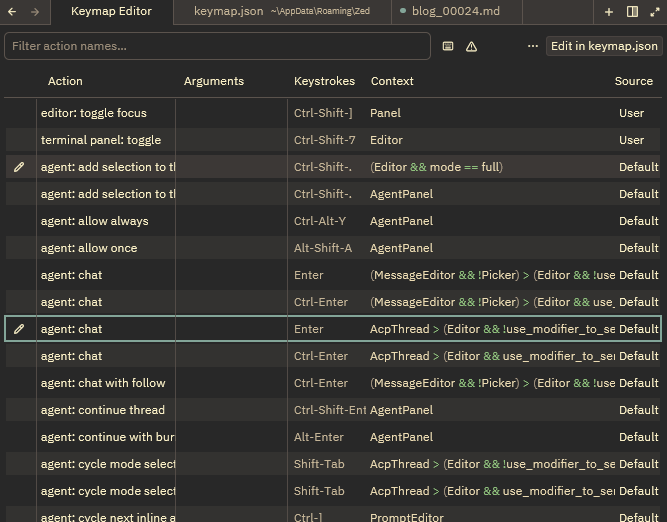
Basic syntax
Keymap entries generally follow this structure. Zed supports sequences of multiple keys (entered in order), so within the "bindings" map you can represent multiple-key sequences by writing them with spaces (in the JSON representation you'll use - as part of the key token where required).
Example:
[
  {
    "bindings": {
      "ctrl-'": "command",
      "shift-ctrl-'": "command"
    }
  },
  {
    "context": "context",
    "bindings": {
      "fn-n": "command"
    }
  }
]
For more details on the syntax, refer to the Keybinding Syntax section in the official docs:
https://zed.dev/docs/key-bindings#contexts
My recommended settings
There are many details such as contexts, precedence, and remapping rules, but since this article focuses on practical recommendations, I'll list the minimal changes I suggest adding to your keymap.json.
Note: I use an English-layout keyboard without a numeric keypad.
...
That said, my conclusion is that you should generally keep most bindings at their defaults. For the reasons explained later, you only need to add the following minimal entries to keymap.json — you generally don't need to touch the rest:
[
  {
    "context": "Editor",
    "bindings": {
      "ctrl-shift-'": "terminal_panel::Toggle" // default is "ctrl-`"
    }
  },
  {
    "context": "Panel",
    "bindings": {
      "ctrl-shift-]": "editor::ToggleFocus"
    }
  }
]
There are two reasons for this choice.
The above mappings addressed the most-needed operations for me that weren't available in the default keybindings. Adding these allows the following operations using only keyboard shortcuts:
- Focus the agent panel at any time, so you can send prompts and interact with the AI chat without interrupting your workflow.
- Focus the terminal panel at any time.
- The default binding (
ctrl-b) toggles the left sidebar. If you use the default right-docked layout for the agent and terminal panels, toggling the left sidebar twice while those panels are focused will return focus to the file editor — so you can always get back to editing quickly.
Most of the actions you need can be found and set via the command palette (Ctrl-Shift-P), and many users are already familiar with standard IDE/global keybindings. Zed also offers presets to make keybindings feel like other editors (e.g., VSCode-like), so making large, arbitrary changes is often unnecessary and may be counterproductive. Instead, follow this small process when you want a change:
- Notice a single operation you want to simplify to a single keybinding.
- Search the command in the command palette or check the official documentation to see if the command exists.
- Assign the desired keybinding to that command.
You can use either the direct keymap.json edit or the keymap editor GUI for step 3.
Conclusion
If you make sure navigation between panels is well-covered by your keymap, you can leave most shortcuts at their defaults and only remap the few keys that improve your workflow. Once you map the critical panel-navigation shortcuts, you should be able to work smoothly.
Enjoy a comfortable Zed experience!
Loading comments...